Client Page
Open a client from the Dashboard to check them in, add sessions, review their history, and share their link.
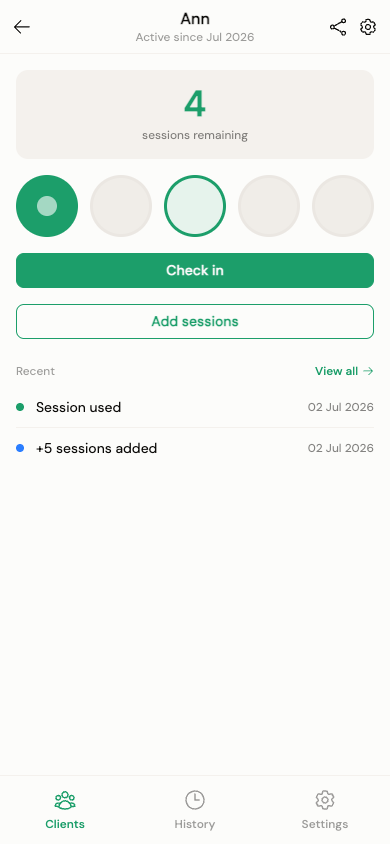
The punchcard grid
Your client's balance is shown as a grid of dots — filled dots are sessions already used, outlined dots are sessions remaining. The grid always shows the current block (since the last time you added sessions), capped at 20 dots — if a client has more than 20 sessions remaining, you'll see the number instead of a huge grid.
Check-in & overdraft
Tap Check in, or tap directly on one of the remaining dots, to record a session immediately — there's no confirmation step.
- If a client has sessions left, their balance simply decreases by one.
- If a client is at zero and overdraft isn't allowed, check-in is blocked with a "no sessions remaining" message.
- If overdraft is allowed (set per-client, see below), a client can check in below zero — you'll see an amber warning and their balance goes negative.
After checking in, a toast appears for 5 seconds with an Undo link and a draining progress bar — tap it to instantly reverse the check-in and restore the balance. The check-in button is hidden while this toast is visible.
Adding sessions
Use the Add sessions action to top up a client's balance: quick +1 / +5 / +10 buttons, or a custom amount. Before confirming, you'll see the resulting new balance and can optionally attach a private note (visible only to you, never to the client).
Sharing with your client
Tap Share to open a modal with:
- A QR code your client can scan
- The raw link, which you can copy with one tap
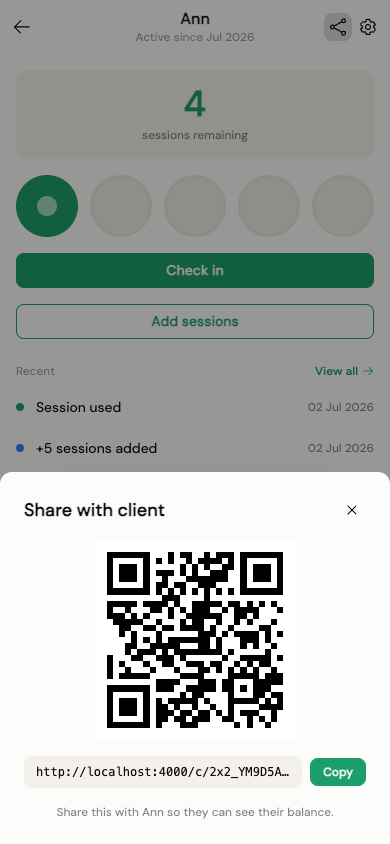
This is the same link your client uses to view their Client Public View — their balance, at any time, with no login.
Client settings
From this page you can also:
- Edit the client's name
- Toggle overdraft on or off
- Mark the client inactive — hides them from your default Dashboard list; you can reactivate them any time
- Delete the client permanently — this requires typing the client's exact name to confirm, and cannot be undone